# IIS MXSuite web redirect HTTP to HTTPS
Once the SSL certificate is installed, MXSuite remains accessible via a regular insecure HTTP connection. To connect securely, visitors must specify the https:// prefix manually when entering MXSuite’s address in their browsers.
To force a secure connection, it is necessary to set up a certain HTTP/HTTPS redirection rule. This way, anyone who enters MXSuite using a link like “mxsuite.company.com” will be redirected to “https://mxsuite.company.com” making the traffic encrypted between the server and the client side.
##### Configure the redirect
Below are steps to setup a IIS HTTPS redirect:
1. [Download and install](https://www.iis.net/downloads/microsoft/url-rewrite#additionalDownloads) the URL Rewrite module.
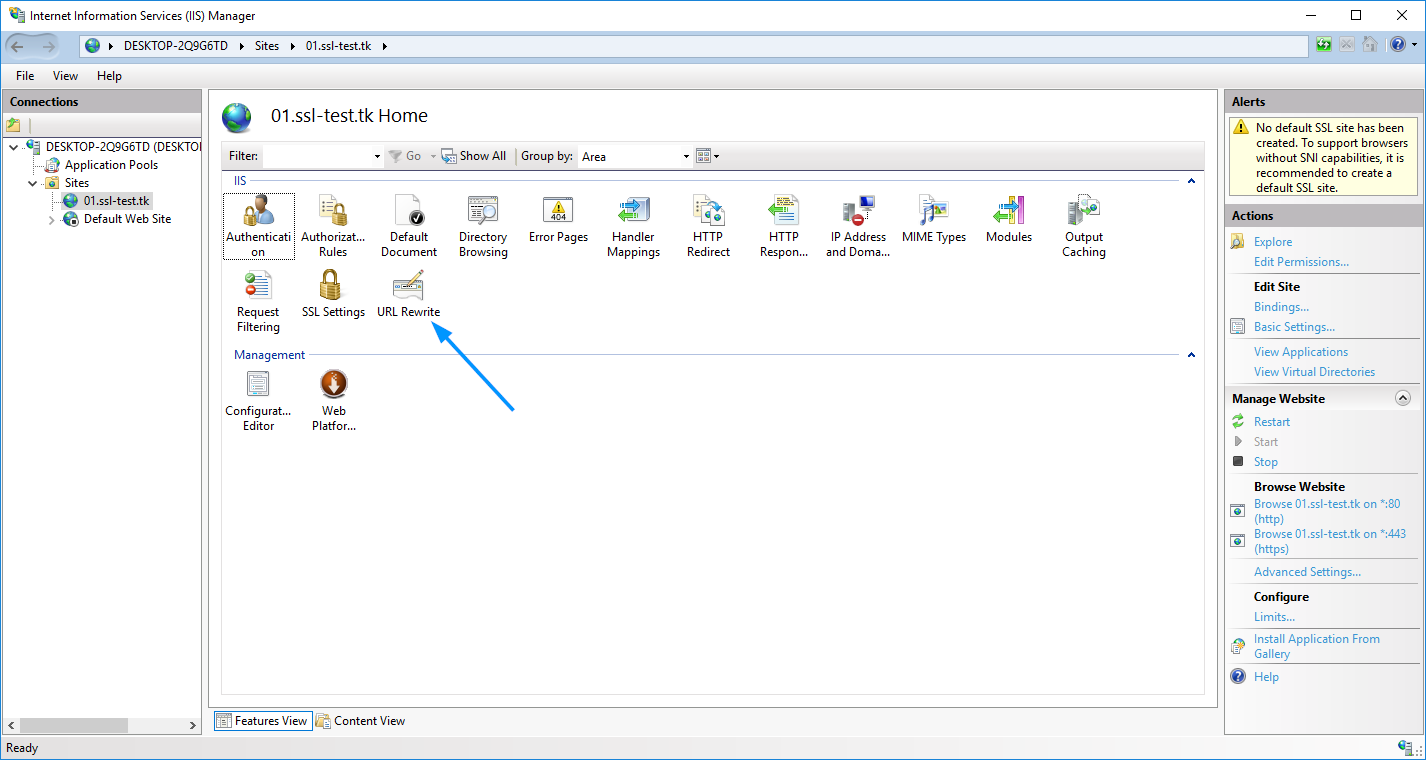
2. Open the **IIS Manager** console and select the website you would like to apply the redirection to in the left-side menu
[](https://docs.mxsuite.nl/uploads/images/gallery/2024-11/iisred1.png)
3. Double-click on the **URL Rewrite** icon.
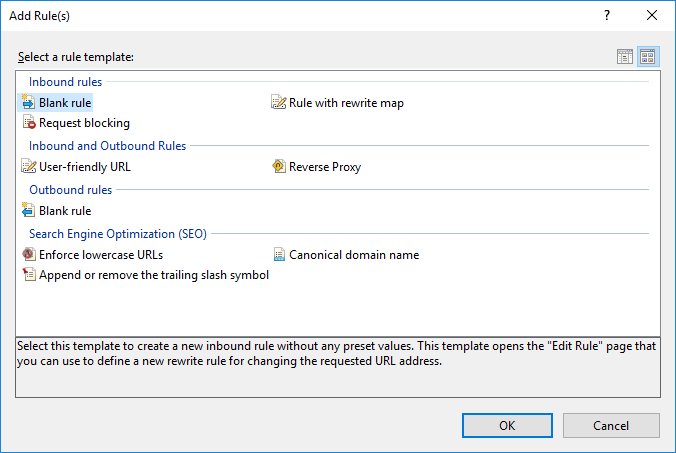
4. Click **Add Rule(s)** in the right-side menu.
5. Select **Blank Rule** in the **Inbound** section, then press **OK**.
[](https://docs.mxsuite.nl/uploads/images/gallery/2024-11/iisred2.png)
6. Enter any rule name you wish.
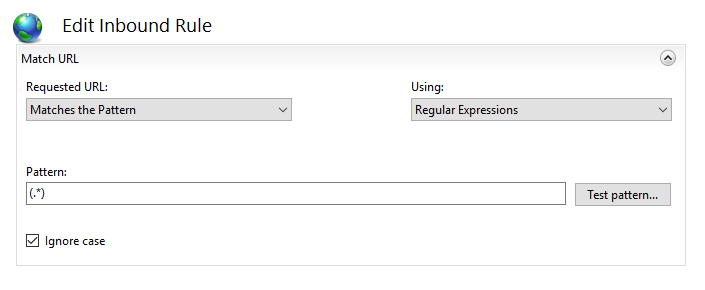
7. In the **Match URL** section:
- Select **Matches the Pattern** in the **Requested URL** drop-down menu
- Select **Regular Expressions** in the **Using** drop-down menu
- Enter the following pattern in the **Match URL** section: **(.\*)**
- Check the **Ignore case** box
[](https://docs.mxsuite.nl/uploads/images/gallery/2024-11/iisred3.png)
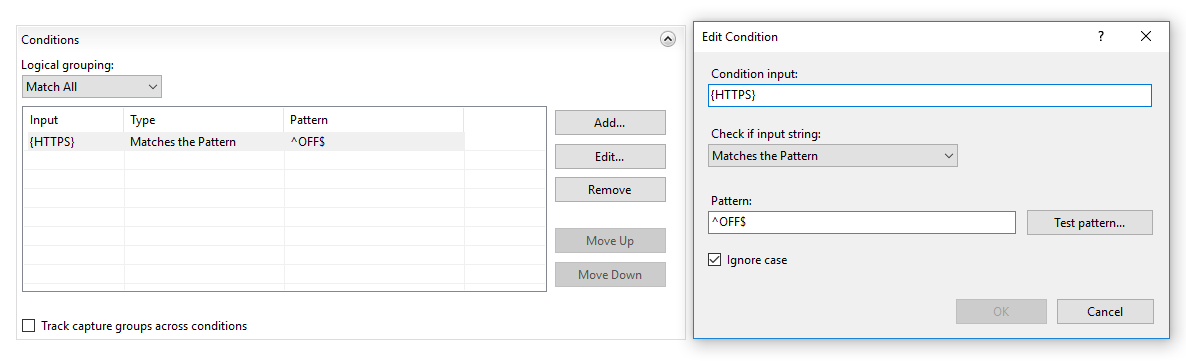
8. In the **Conditions** section, select **Match all** under the **Logical Grouping** drop-down menu and press **Add**.
9. In the prompted window:
- Enter **{HTTPS}** as a condition input
- Select **Matches the Pattern** from the drop-down menu
- Enter **^OFF$** as a pattern
- Press **OK**
[](https://docs.mxsuite.nl/uploads/images/gallery/2024-11/iisred4.png)
10. In the **Action** section, select **Redirect** as the action type and specify the following for **Redirect URL**:
```
https://{HTTP_HOST}{REQUEST_URI}
```
11. Un-check the **Append query string** box.
12. Select the Redirection Type of your choice. The whole **Action** section should look like this:
[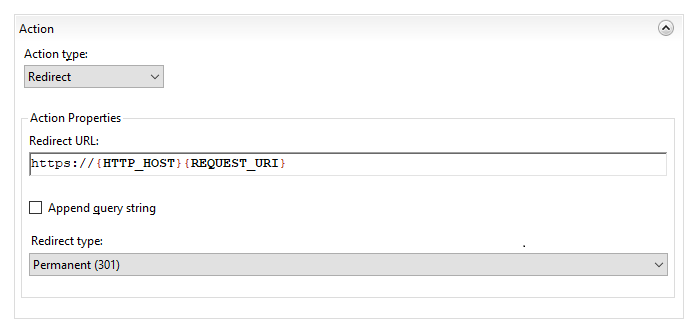](https://docs.mxsuite.nl/uploads/images/gallery/2024-11/iisredirect5.png)
4 redirect types of the redirect rule can be selected in that menu:
- Permanent (301) – preferable type in this case, which tells clients that the content of the site is permanently moved to the HTTPS version. Good for SEO, as it brings all the traffic to your HTTPS website making a positive effect on its ranking in search engines.
- Found (302) – should be used only if you moved the content of certain pages to a new place \*temporarily\*. This way the SEO traffic goes in favour of the previous content’s location. This option is generally not recommended for a HTTP/HTTPS redirect.
- See Other (303) – specific redirect type for GET requests. Not recommended for HTTP/HTTPS.
- Temporary (307) – HTTP/1.1 successor of 302 redirect type. Not recommended for HTTP/HTTPS.
OPTION 2: Specify the **Redirect Rule** as **https://{HTTP\_HOST}/{R:1}** and check the **Append query string** box. The **Action type** is also to be set as **Redirect**.
13. Click on **Apply** on the right side of the **Actions** menu.