MXSuite Excel Import – Export
In this chapter you can find technical details on preparing an import per module.
- General info
- AssetsCategories
- AssetsCategoriesProperties
- Counters
- AssetsTasksGroups
- AssetsTasks
- AssetsTasksRanks
- AssetsTasksApproversRanks
- AssetsTasksParts
General info
Import field relations with general data
If you filled in the following columns in the Excel file:
- Budgetcodes
- Currencies
- Product categories
- Units
- Ranks
Then this data must exist in the Administration module
All fields in the Excel file must be in text format.
For example, if there is a problem after importing inventory with the PartNumber (column C) change the format of this column (Right mouse click on this column, select Format Cells) to category General
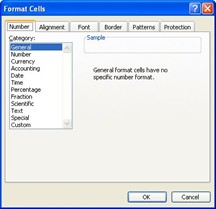
Do not change the top row of the Excel file! If this is changed, the import will fail
AssetsCategories
General
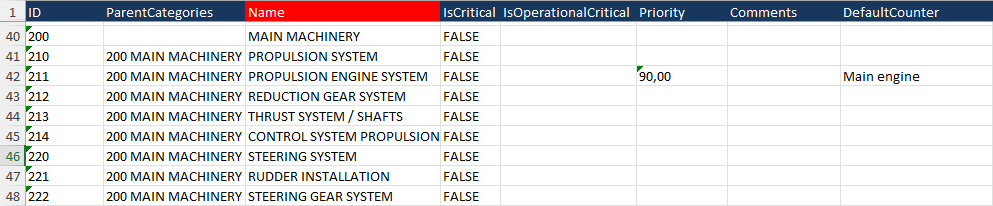
The categories will be used to link all maintenance tasks and spare parts to a category. The sheet in the Excel file is called “AssetsCategories”
Details fields
To fill the Excel file correctly, make sure that all fields are filled correctly. Below are the fields listed.
| Field | MAX Characters | Required | Comment |
| ID | 128 | Id number of the category | |
| ParentCategories | If this category is a child of another category, enter the ID number of the parent category, followed by a space, followed by the name of the parent category | ||
| Name | 128 | X | Name of the category |
| IsCritical | 5 | True or False | |
| IsOperationalCritical | 5 | True or False | |
| Priority | 18.2 | Number with 2 decimals, separated by a comma | |
| Comments | 1024 | Comment for the category | |
| Defaultcounter | 128 | Preferred counter for counter-based maintenance tasks. The name of the counter should be mentioned |
Example
AssetsCategoriesProperties
This part is used to load all Category Attributes in MXSuite. The sheet in the Excel file is called “AssetsCategoriesProperties”.
Details fields
To fill the Excel file correctly, make sure that all fields are filled correctly. Below are the fields listed.
| Field |
MAX Characters | Required | Comment |
| ParentCategories | X | Show the category path of the category that this entity needs to be connected to. If this is linked to a subcategory, enter the ID + name of the main category, followed by a space, > , and a space, followed by the ID + name of the subcategory | |
| Name | X | The Name of the attribute | |
| Value | The Value of the attribute | ||
| Type | X | The Type of the attribute, the default value is None | |
| ShowOnServiceOrders | If this information must be printed on the Service order, set the value to True; otherwise, set it to False | ||
| ShowOnProductOrders | If this information must be printed on the Product order, set the value to True; otherwise, set it to False |
Example

Counters
General
This part is used to load all counters in MXSuite. The sheet in the Excel file is called “Counters”.
Details fields
To fill the Excel file correctly, make sure that all fields are filled correctly. Below are the fields listed.
| Field | MAX Characters | Required | Comment |
| Name | 128 | X | Name of the Counter |
| Unit | 128 | X | The unit name should exactly match the name of the Unit as known in Administration -> Units |
| AveragePerWeek | X | The maximum average per week for the selected unit. For unit Running hours, the average must be set to 168 | |
| ActualCounterValue | X | The actual counter value for the imported counter machine | |
| ParentCounter | If the counter will use the input from another counter, specify here the countername |
Example

AssetsTasksGroups
General
All maintenance tasks are linked to a maintenance job plan. The job plan is linked to a category. So the maintenance job plans are between the categories and maintenance tasks.
The sheet in the Excel file is called “AssetsTasksGroups”.
Details fields
To fill the Excel file correctly, make sure that all fields are filled correctly. Below are the fields listed.
| Field | MAX Characters | Required | Comment |
| ParentCategories | X | Show the category path of the category that this entity needs to be connected to. If this is linked to a subcategory, enter the ID + name of the main category, followed by a space, > , and a space, followed by the ID + name of the subcategory | |
| Name | 128 | X | Name of the group |
| ID | 128 | ID number of the group | |
| CostCode | The Costcode name should exactly match the name of the Budgetcode as known in Administration -> Budgetcodes |
Example

AssetsTasks
General
This part is used to load all tasks in MXSuite. The sheet in the Excel file is called “AssetsTasks”.
Details fields
To fill the Excel file correctly, make sure that all fields are filled correctly. Below are the fields listed.
| Field | MAX Characters | Required | Comment |
| ParentCategories | X | Show the category path of the category that this entity needs to be connected to. If this is linked to a subcategory, enter the ID + name of the main category, followed by a space, > , and a space, followed by the ID + name of the subcategory | |
| AssetsTasksGroupName | 128 | X | Name of the group which the maintenance task is connected. |
| TaskType | 9 | X |
Type of the interval of the maintenance task. 2 options are possible: - Recurring: This is used if the task needs to be done according to a given interval - OneTime: This is used if the task needs to be done one time. There is no interval connected |
| ID | 128 | ID number of the maintenance task | |
| TaskName | 128 | X | The name of the maintenance task |
| UseTaskOnce | 5 | If the TaskType is set to Onetime, this setting must be set to True Otherwise, this setting must be set to False |
|
| IsDefect | 5 | Only if the Tasktype is set to Onetime, and the UseTaskOnce is set to True, can this setting be set to True if the task is a defect. Usually, this setting is False. | |
| IsCounterBased | 5 | If the maintenance task is based on running hours, this must be set to True; otherwise, fill in the option False. If the maintenance task is both based on running hours and time-based, set this to True. In column Duedate, fill in the proper date, and fill in column DueRunningHours, the due running hours value |
|
| IsRemarkMandatory | If a remark is mandatory during marking a maintenance task as done, set this to True If no remark is needed during marking a maintenance task as done, set this to False |
||
| CostCode | 50 | The Costcode name should exactly match the name of the Budgetcode as known in Administration -> Budgetcodes | |
| IsFixedInterval | 5 | If the maintenance task has a fixed interval, set this option to True. Otherwise, fill in option False | |
| IntervalValue | If the task has a time interval, fill in here the value of days/weeks/months If the task has a counter interval, fill in the value of the counters If the task is a one-time task, leave this field empty If the task is a docking task, leave this field empty |
||
| IntervalType | 6 | X* | * In case that the task is not a counter-based task or the field IsDocking = false, this field is mandatory Fill in here the type of interval. Possible values are: - Days - Weeks - Months |
| DueDate | 19 | X* |
* In case that the task is not a counter-based task or the field IsDocking = false, this field is mandatory. The due date of the task. Written in the date-time format of the PC that imports the file. The default Dutch format is D-M-YYYY HH:MM:ss |
| MaximumIntervalValue | If the task is based on counters and time-based, fill here the number of days/weeks/months | ||
| MaximumIntervalType | 6 | X* | * In case a value is entered in MaximumIntervalValue, this field is mandatory. Fill in here the type of interval. Possible values are: - Days - Weeks - Months |
| RunningHoursMachine | X* |
*In case the task is counter-based, this field is mandatory. Fill in the name of the related counter machine here. |
|
| DueRunningHours | X* |
*In case the task is counter-based, this field is mandatory. Fill in here the value of the counter when the task becomes due. A numeric value is accepted without decimals. |
|
| IsProject | 5 | Is the task is related to a project, set the value to True, otherwise set to False | |
| DownTime | The time needed to finish the task in hours. Only a numeric value without decimals is accepted. | ||
| WarningPeriod | Here, the warning period as a numeric field in combination with the field WarningType. For example, WarningPeriod 7 and WarningType 1 mean that the task becomes due 7 days before the due date; in this case, fill in number 7. |
||
| WarningType | 1 | Fill in here the type of interval. Possible values are: Value 1 for the interval in days Value 2 for the interval in weeks Value 3 for the interval in months |
|
| LongDescription | The long task description where the procedures can be described how to perform the task. With Alt-Enter in the Excel sheet, the text starts on a new line. Note: layout formatting is not possible via the import from Excel. |
||
| TaskCompletionNeedsApproval | 5 |
If the task needs to be approved by another rank, set the value to True. If the task does not need to be approved by another rank, set the value to False. Note: The approver rank can be entered in Sheet: AssetsTasksApproversRanks |
|
| IsAttachmentMandatory | 5 |
If an attachment is required when completing the task, set this value to True If an attachment is not required when completing the task, set this value to False |
|
| Priority |
The possible priorities are:
- Top priority
|
AssetsTasksRanks
General
This part is used to link ranks to a task. The sheet in the Excel file is called “AssetsTasksRanks”.
Details fields
To fill the Excel file correctly, ensure that all fields are completed accurately. Below are the fields listed.
| Field | MAX Characters | Required | Comment |
| ParentCategories | X | Show the category path of the category that this entity needs to be connected to. If this is linked to a subcategory, enter the ID + name of the main category, followed by a space, > , and a space, followed by the ID + name of the subcategory | |
| AssetsTasksGroupName | 128 | X | Name of the group to which the maintenance task is connected. |
| TaskName | 128 | X | The name of the maintenance task |
| RankName | X | The name of the rank that must be linked to the task |
If more ranks must be linked to one task, add per rank a new line to be linked to the task.
AssetsTasksApproversRanks
General
This part is used to link the ranks that must approve the task signoff. The sheet in the Excel file is called “AssetsTasksApproversRanks”.
Details fields
To fill the Excel file correctly, ensure that all fields are completed accurately. Below are the fields listed.
| Field | MAX Characters | Required | Comment |
| ParentCategories | X | Show the category path of the category that this entity needs to be connected to. If this is linked to a subcategory, enter the ID + name of the main category, followed by a space, >, and a space, followed by the ID + name of the subcategory | |
| AssetsTasksGroupName | 128 | X | Name of the group to which the maintenance task is connected. |
| TaskName | 128 | X | The name of the maintenance task |
| RankName | X | The name of the rank that must approve the task signoff |
If more ranks can approve the task signoff, add a new line per rank to be linked to the task.
AssetsTasksParts
General
This part is used to link the parts that are used during the task sign-off. The sheet in the Excel file is called “AssetsTasksParts”.
Details fields
To fill the Excel file correctly, ensure that all fields are completed accurately. Below are the fields listed.
| Field | MAX Characters | Required | Comment |
| ParentCategories | X | Show the category path of the category that this entity needs to be connected to. If this is linked to a subcategory, enter the ID + name of the main category, followed by a space, >, and a space, followed by the ID + name of the subcategory | |
| AssetsTasksGroupName | 128 | X | Name of the group to which the maintenance task is connected. |
| TaskName | 128 | X | The name of the maintenance task |
| Owncode | 50 | X | The unique number of the part that will be linked to the task |
| Quantity | X | The quantity of the part that will be used during the task sign-off | |
| CostCode | 50 | Lookup to the Cost Codes as defined in the tab Administration. This should exactly match the name of the cost code. |