Right-click on an existing category and then click **New...** to fill the above category.
# How do I copy a category? 1. Right-click on the category and select **Copy.** 2. Select the location you want to copy the category to. 3. Right-click on the category and select **Paste.** 4. A new category will be created with the copied documents. The pop-up window shows how many documents and categories have been copied. [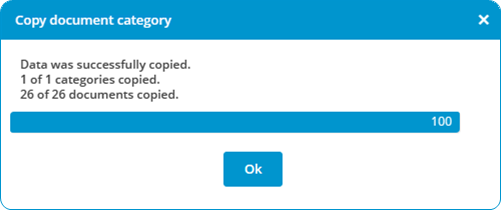](https://docs.mxsuite.nl/uploads/images/gallery/2024-11/copycat.png) # How do I assign roles to categories? 1. Right-click on a document category and select **Edit...** 2. In the central column (**visible for user groups**) you can select a role per user group. [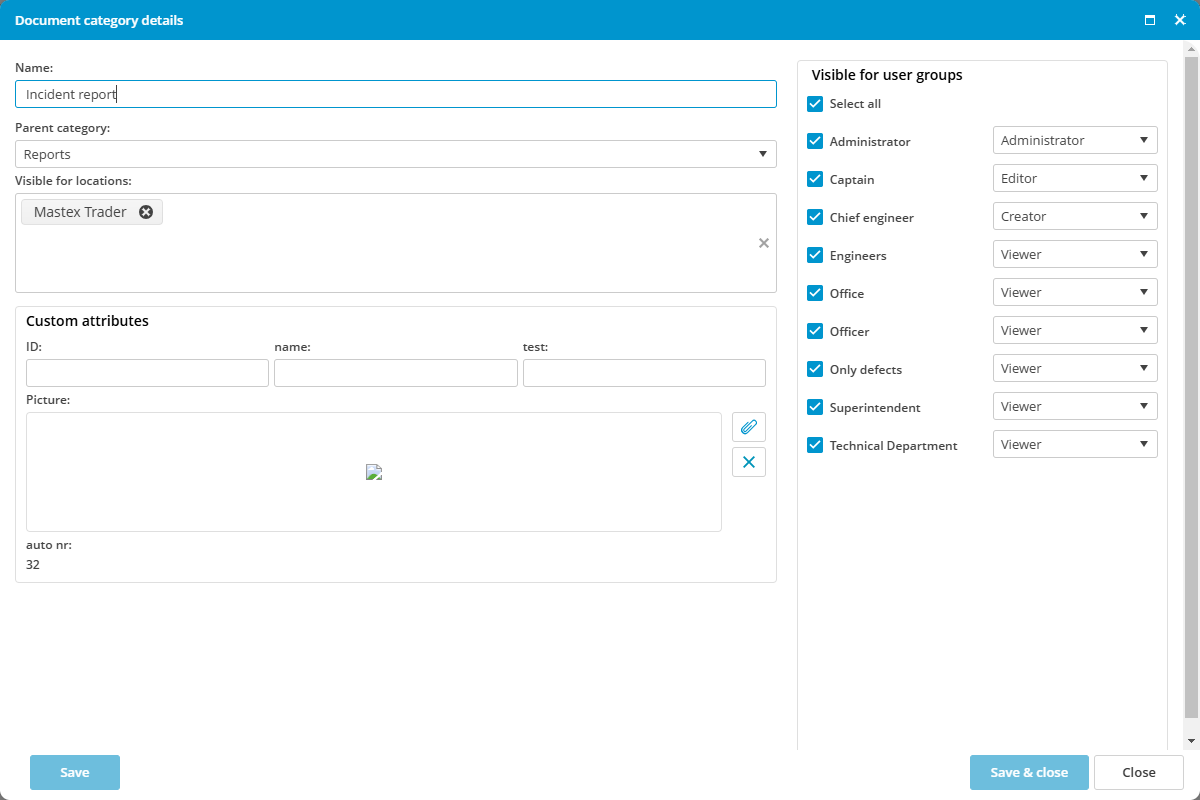](https://docs.mxsuite.nl/uploads/images/gallery/2024-11/assignroles.png) # How do I create a new document? 1. Click on **New document.** [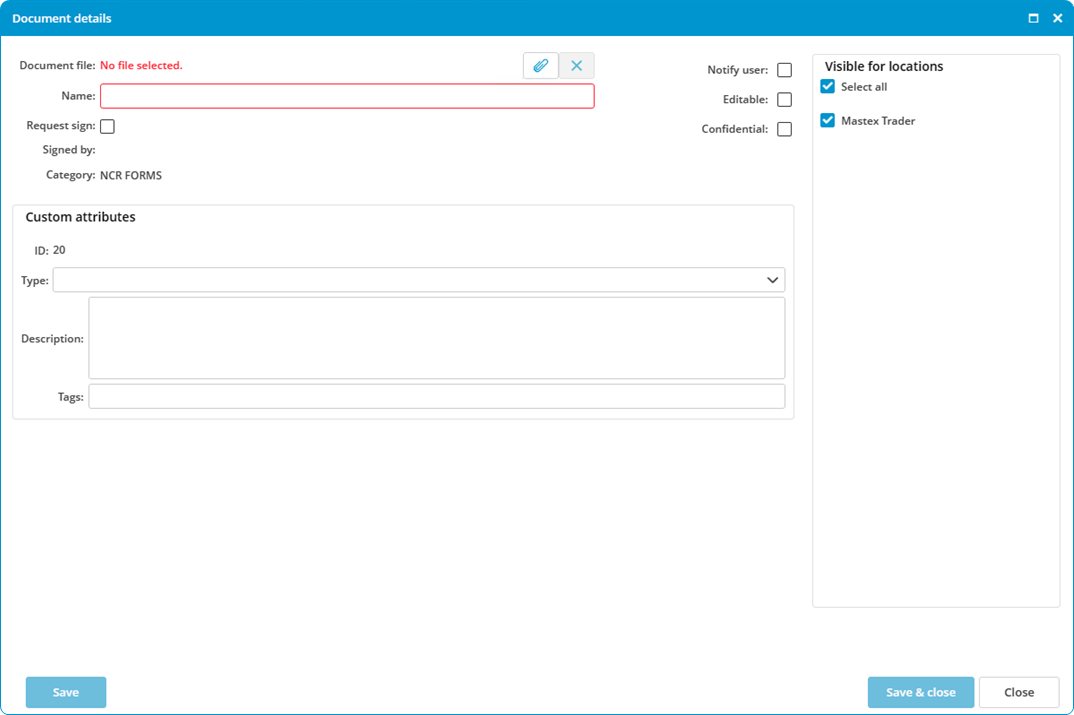](https://docs.mxsuite.nl/uploads/images/gallery/2024-11/newdoc.png) 2. Click on [](https://docs.mxsuite.nl/uploads/images/gallery/2024-11/magnifier.png) to select the **document.** 3. Enter or edit the **Name**. The name of the document will be automatically generated based on the chosen document. 4. In the right column, select the **locations** for which the document should be visible. 5. Complete all required fields. 6. Click on **Save & close.** - **Description**: Enter a description of the document. - **Tags**: To be able to search for certain words using the search function. - **Confidential**: Indicate whether this is a confidential document. Only authorised users will have access to this document. This document will not appear in the list for non-authorised users. - **Sign**: If the document has to be signed before it can be opened, select this option. In order to open the document, the user will first be prompted to enter the password. - **Notify user**: The user will be notified of any changes to the document when starting MXSuite. - **Editable**: Select this option if the document needs to be edited. This makes it possible to edit the document at a later date and save it in the database. # How do I create a template? 1. Click on **Administration** in the sidebar. 2. Select **Documents.** [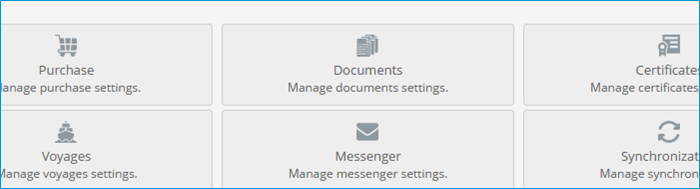](https://docs.mxsuite.nl/uploads/images/gallery/2024-11/admindocs.png) 3. Select **Templates.** [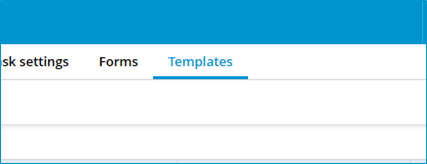](https://docs.mxsuite.nl/uploads/images/gallery/2024-11/admindoctemplates.png) 4. In the screen Manage templates, click on **New...** You can now enter the basic information from the new template. [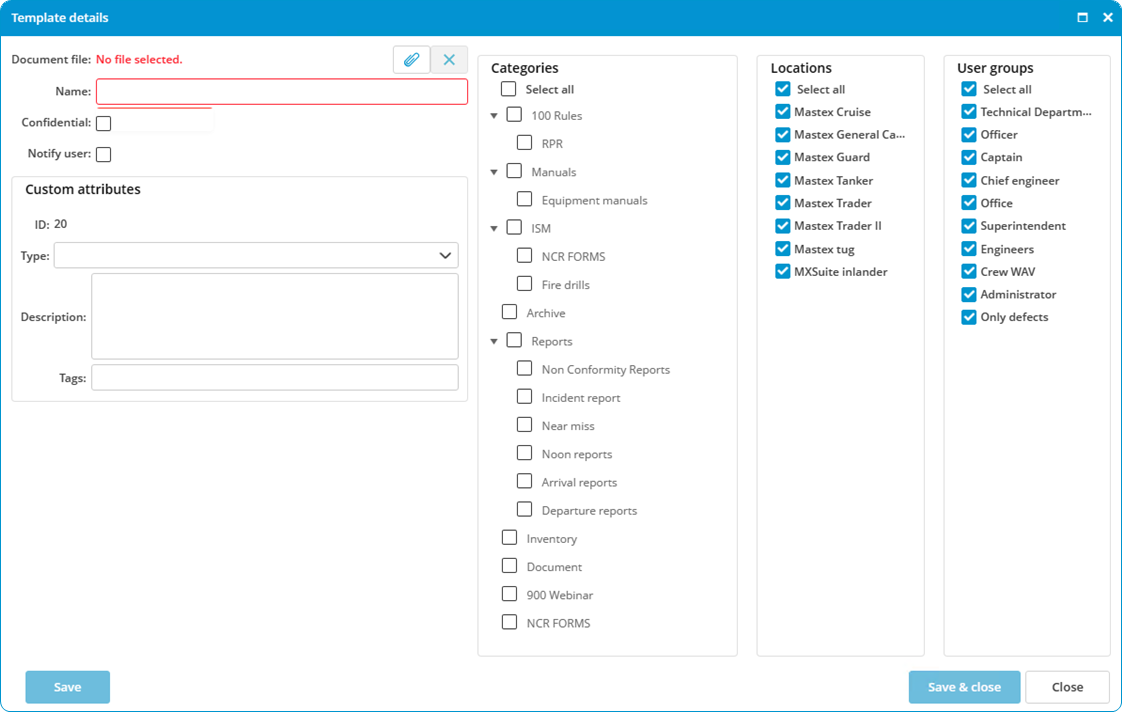](https://docs.mxsuite.nl/uploads/images/gallery/2024-11/templatedetails.png) 5. Click on [](https://docs.mxsuite.nl/uploads/images/gallery/2024-11/magnifier.png) to link the document. 6. Enter the **Name** for the template. 7. Select the **Categories** for which the template can be used. 8. Select the **Locations** that can use the template. 9. Select the **User groups** that can use the template. 10. Click on **Save & close** to create the template. # How do I edit a template? 1. Right-click on the template and select **Edit template..**. 2. The template can now be edited in an external editor 3. Save the file in the external editor and close the editor [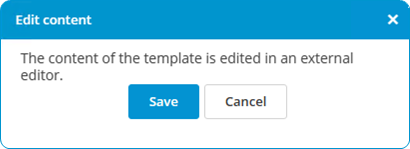](https://docs.mxsuite.nl/uploads/images/gallery/2024-11/edittemplate.png) # How do I create a document based on a template? 1. Click on **New template document.** 2. Select a template from the drop-down menu. 3. Complete all required fields. 4. Select the location in which the document has to be visible. 5. Click on **Save & close** to create a document based on the template. # How do I complete a form? 1. Click on **New form** and select the desired form. 2. Enter at a minimum the mandatory fields. 3. Select the location(s) where the form should be displayed. 4. Click on **Save and close** to create the form. 5. Enter at a minimum the mandatory fields. 6. Click on **Save & close.** # How do I make a form ‘read only’? 1. Right-click on the form. 2. Select **Edit properties**... 3. Select the option **Is closed.**You may find that the option **Is closed** is not visible after step 2. In that case, click on **More details >>** and go to step 3.
Only users with the authorization **Allowed to reopen forms** may reopen the form.
# How do I delete a document? 1. Right-click on the relevant document in the document list and select **Delete...** 2. Select the location from which the document should be deleted. 3. Click on **Ok.** 4. Choose **Select all** to delete the document from the office version as well. [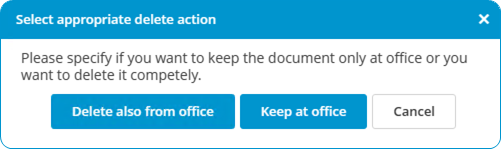](https://docs.mxsuite.nl/uploads/images/gallery/2024-11/deletedocument.png) # What is the difference between duplicate and copy? When you **duplicate** a document or category, they can only be copied in the same category. When you **copy** a document or category, you can also copy them to another category. # How do I obtain editing rights? To prevent discrepancies in the content of a document, an editable document cannot be edited at multiple locations at the same time. This means it can either be edited in the office or on the ship. If the menu option **Edit document** is not available, editing rights must be requested. 1. Right-click on the document. 2. Select the option **Request edit.** This request will be sent via synchronisation to the location that currently has editing rights. A subsequent synchronisation will accept the request and grant editing rights.The location that adds the document in MXSuite has editing rights by default.
# How do I see what happened to a document? 1. Right-click on a document. 2. Select **View log...** [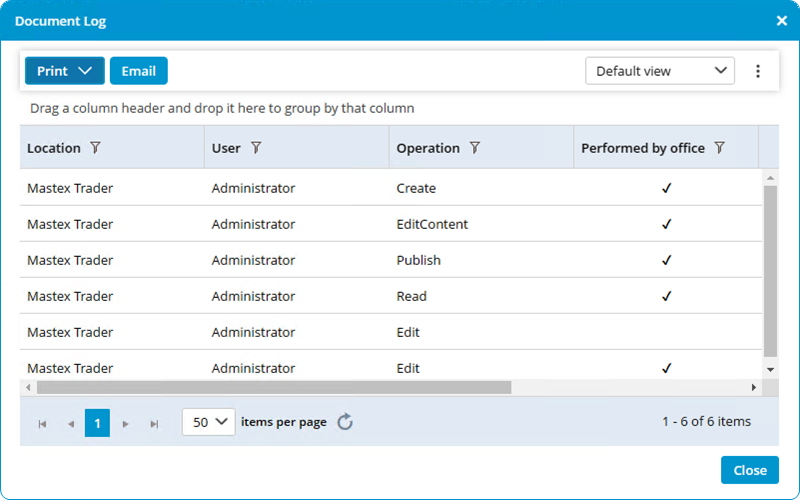](https://docs.mxsuite.nl/uploads/images/gallery/2024-11/doclog.png) # How do I search for a document? 1. Enter a search term into **Search...** 2. All documents that contain the search term will be displayed. [](https://docs.mxsuite.nl/uploads/images/gallery/2024-11/searchdoc.png)The search will be carried out at all locations. The search can be specified by selecting a specific view option or category. Only the document properties are searched (e.g. name, description, tags, etc.), not the document content.
# How do I create a document task? 1. Right-click on the document and select **Add** **task**. [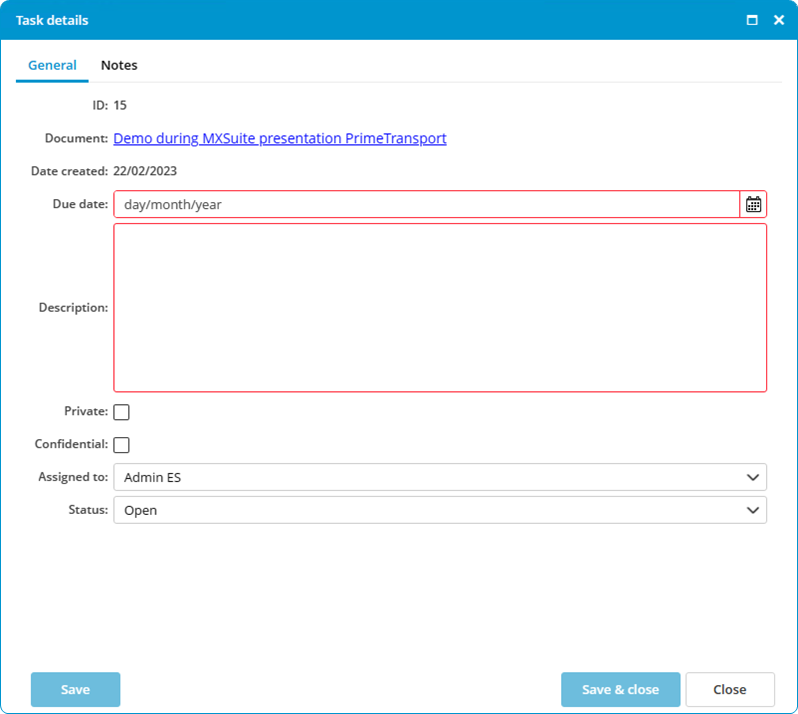](https://docs.mxsuite.nl/uploads/images/gallery/2024-11/createddoc.png) 2. Enter the fields **Due date** and **Description.** 3. Assign the task to a user. 4. Select the **Status.** 5. Click on **Save & close.****Private**: only visible by this person; not synchronized to the ship. **Confidential**: only visible to the authorized user group.