| **Symbol** | **Explanation** |
|---|---|
| [](https://docs.mxsuite.nl/uploads/images/gallery/2024-11/embedded-image-q6siii7a.png) | The green ball indicates that a survey or certificate needs to be updated in this period. At the moment, no additional actions are required. |
| [](https://docs.mxsuite.nl/uploads/images/gallery/2024-11/embedded-image-zluwgeb5.png) | The green ball with the curl indicates that this survey has been performed. This survey has been included in the history tab. |
| [](https://docs.mxsuite.nl/uploads/images/gallery/2024-11/embedded-image-ofc99sej.png) | The orange triangle indicates that the survey or certificate renewal is currently in the window period and therefore needs your attention. |
| [](https://docs.mxsuite.nl/uploads/images/gallery/2024-11/embedded-image-cbagmsxp.png) | The red diamond indicates that a survey or certificate needs to be renewed and actually is overdue. |
| [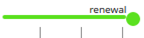](https://docs.mxsuite.nl/uploads/images/gallery/2024-11/embedded-image-dzgiwgmn.png) | The line to the left of a symbol indicates the window period before the survey or certificate renewal. The length of the line indicates the number of months in this period. |
| [](https://docs.mxsuite.nl/uploads/images/gallery/2024-11/embedded-image-0ezohfis.png) | This certificate has expired and the due date is not in the current view. |
If a certificate is entered with an issue date but without an expiry date, enter a 0 in **Renewal after**. This will remove the expiry date from the screen.
# How do I reorder categories? 1. Right-click on a **Category** and select **Reorder certificate categories...** 2. Select a category and use **Move up** and **Move down** to change the order. [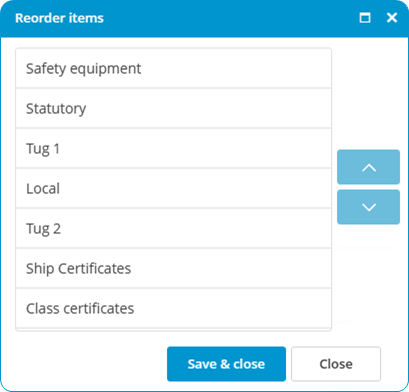](https://docs.mxsuite.nl/uploads/images/gallery/2024-11/certificatereordercategories.png) 3. Click on **Save & close.** # How do I reorder certificates? 1. Right-click on a **Certificate** and select the option **Reorder certificate items...** 2. Select a certificate and use **Move up** and **Move down** to change the order. [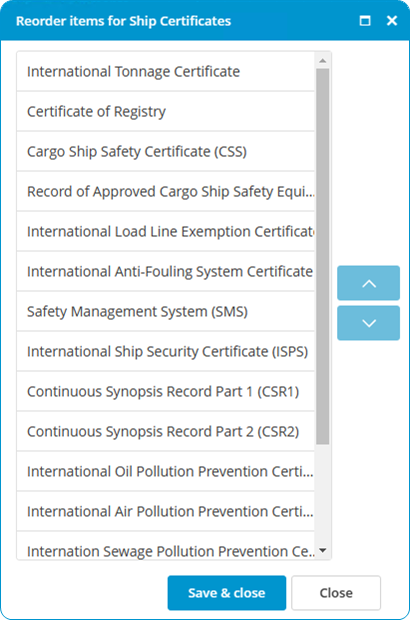](https://docs.mxsuite.nl/uploads/images/gallery/2024-11/reordercertificateitems.png) 3. Click on **Save & close.** # How do I mark a survey as completed? 1. In the timeline of the certificate you want to extend, double-click on the symbol (this is only possible if the colour is orange or red ) or right-click on the symbol and select **Endorsement...** 2. Complete all required fields. [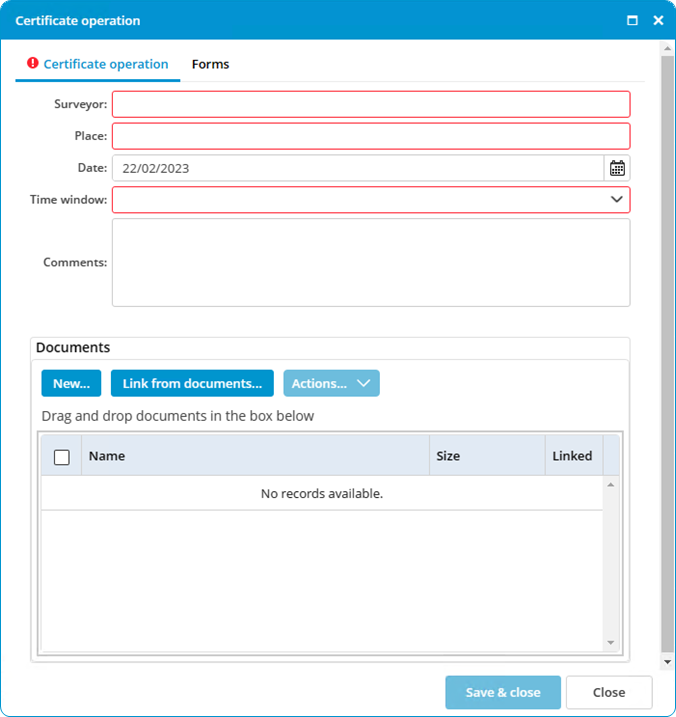](https://docs.mxsuite.nl/uploads/images/gallery/2024-11/certificateoperation.png) 3. Select the annual or intermediate survey that has been completed. 4. Click on **Save & close.**After extending the certificate, a green ball with a curl will appear.
When carrying out a survey, select the option **Extra survey** to save an interim survey in the certificate history.
# How do I copy all certificates in a category? 1. Right-click a certificate category and click **Copy...** 2. Select the location where you want to copy the certificate category to. [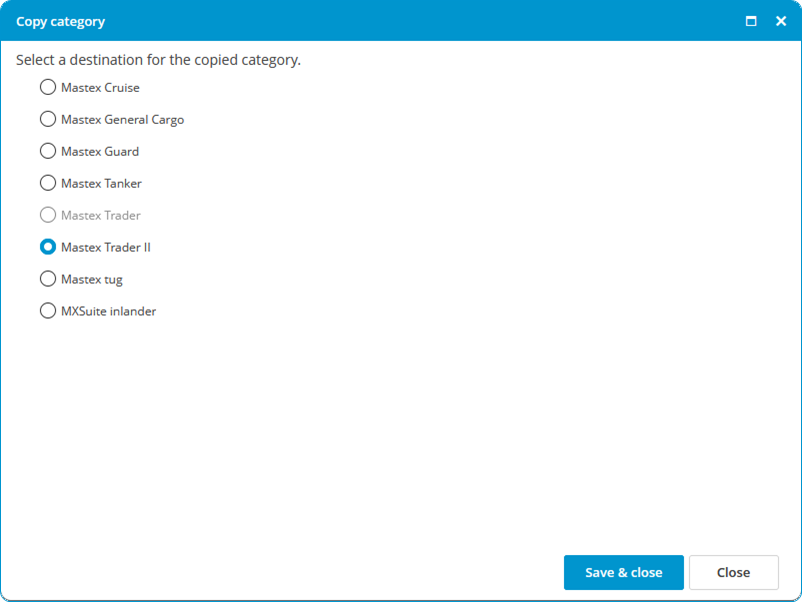](https://docs.mxsuite.nl/uploads/images/gallery/2024-11/certrificatecategorycopytolocation.png) 3. Click **Save & Close.**The history of the certificates will also be copied. A location is not displayed during the copying process if: - the destination has no module Certificates. - the source has a docking certificate and the destination does not.
# How do I email certificates? 1. Click on **Email...** 2. Select the email you want to send. You can select all certificates and all attachments at the same time or you can add them separately. [](https://docs.mxsuite.nl/uploads/images/gallery/2024-11/emailcertificates.png) 3. Click on **Create e-mail.** 4. The generated email will be downloaded or shown in MXSuite (depends on configuration).