# Assets general

In the Assets module a category list is used to categorize all equipment. Also all details of the assets and photo's can be saved per category.

# How do I create a new category?

1. Right-click on a category. The new category will be created as a subcategory of the selected category. To create a new main category, click on an empty part of the tree structure.
2. Click on **New category...**
3. Complete all required fields.  
    [![assetsnewcategory.png](https://docs.mxsuite.nl/uploads/images/gallery/2024-11/scaled-1680-/assetsnewcategory.png)](https://docs.mxsuite.nl/uploads/images/gallery/2024-11/assetsnewcategory.png)
4. Click on **Save &amp; close**.

<p class="callout info">If you clicked on the wrong category in step 1, you can change the parent category in this window. </p>

# How do I hide categories and make them visible?

##### Hide a category: 

1. Right-click on a category and select **Hide category.**
2. The category is now hidden.

##### Make a category visible:

This is only possible when the remark **Some categories are hidden** can been seen at the bottom of the tree structure.

1. Right-click under the final category in the tree structure and select **Show hidden categories.**
2. The categories are now visible again.

# How do I search for a category?

Use the search bar at the top of the tree structure to search for a category.

<figure class="image" id="bkmrk-">![](https://docs.mxsuite.nl/uploads/images/gallery/2024-11/embedded-image-fnoce0cj.png)</figure>1. Enter the name or partial name of the category.
2. Click on [![magnifier.png](https://docs.mxsuite.nl/uploads/images/gallery/2024-11/scaled-1680-/magnifier.png)](https://docs.mxsuite.nl/uploads/images/gallery/2024-11/magnifier.png)
3. The tree structure will now only show the categories in which the search term appears.

<p class="callout info">To display all categories, delete the search term and click on the search icon. [![magnifier.png](https://docs.mxsuite.nl/uploads/images/gallery/2024-11/scaled-1680-/magnifier.png)](https://docs.mxsuite.nl/uploads/images/gallery/2024-11/magnifier.png)</p>

# Safety critical and/or operational critical?

MXSuite allows you to mark a category as critical. MXSuite offers the option to filter all tasks based on criticality. Using that, the worklist can be filtered on critical equipment.

There are 2 types of critical marks:

1. Safety critical: this is used to mark a category (equipment) as safety for ISM / class, such as a main engine.
2. Operational critical: this is to mark a category (equipment) as safety for operational use, such as a towing winch.

There are different icons used to indicate critical categories:

<table border="1" id="bkmrk-icon-explanation-the" style="border-collapse: collapse; width: 60.9524%;"><colgroup><col style="width: 13.23%;"></col><col style="width: 86.77%;"></col></colgroup><tbody><tr><th class="align-center" style="background-color: rgb(230, 126, 35);">**Icon**</th><th style="background-color: rgb(230, 126, 35);">**Explanation**</th></tr><tr><td class="align-center">[![image.png](https://docs.mxsuite.nl/uploads/images/gallery/2024-11/scaled-1680-/cuWimage.png)](https://docs.mxsuite.nl/uploads/images/gallery/2024-11/cuWimage.png)

</td><td>The category is marked as **safety critical**.</td></tr><tr><td class="align-center">[![image.png](https://docs.mxsuite.nl/uploads/images/gallery/2024-11/scaled-1680-/ykbimage.png)](https://docs.mxsuite.nl/uploads/images/gallery/2024-11/ykbimage.png)

</td><td>The category is marked as **operational critical**.</td></tr><tr><td class="align-center">[![image.png](https://docs.mxsuite.nl/uploads/images/gallery/2024-11/scaled-1680-/PQvimage.png)](https://docs.mxsuite.nl/uploads/images/gallery/2024-11/PQvimage.png)

</td><td>The category is marked as **safety critical** and **operational critical.**</td></tr></tbody></table>

To mark a category as critical:

Right-click on a category and select **Mark as safety critical** or **Mark as operational critical**.

[![markascritical.png](https://docs.mxsuite.nl/uploads/images/gallery/2024-11/scaled-1680-/markascritical.png)](https://docs.mxsuite.nl/uploads/images/gallery/2024-11/markascritical.png)

# How do I add photos to a category?

1. Open the tab **Photos** on a category
2. Click on **New...  
    [![assetseditcategoryphotos.png](https://docs.mxsuite.nl/uploads/images/gallery/2024-11/scaled-1680-/assetseditcategoryphotos.png)](https://docs.mxsuite.nl/uploads/images/gallery/2024-11/assetseditcategoryphotos.png)**
3. Click on **Browse...**   
    [![assetseditcategoryphotosbrowse.png](https://docs.mxsuite.nl/uploads/images/gallery/2024-11/scaled-1680-/assetseditcategoryphotosbrowse.png)](https://docs.mxsuite.nl/uploads/images/gallery/2024-11/assetseditcategoryphotosbrowse.png)
4. Select the images.
5. Click on **Save &amp; close.**

<p class="callout info">Permitted image formats are: .BMP .DIB .RLE .JPG .JPEG .JPE .JFIF .GIF .TIF .TIFF .PNG</p>

# How do I copy or move photos between categories?

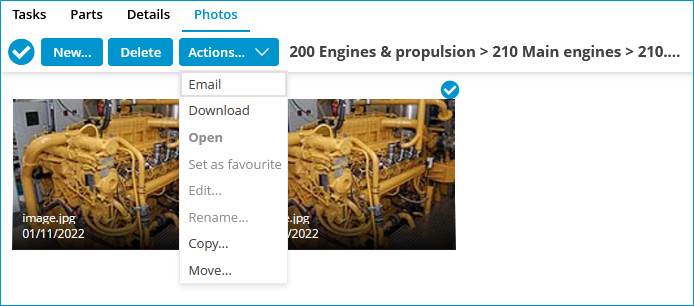
1. Select the photos you want to copy.
2. Click on **Actions... &gt; Copy.  
    [![assetsselectphotos.png](https://docs.mxsuite.nl/uploads/images/gallery/2024-11/scaled-1680-/assetsselectphotos.png)](https://docs.mxsuite.nl/uploads/images/gallery/2024-11/assetsselectphotos.png)**
3. Select the category the photos need to be copied to.  
    [![copiedphotosbetweencategories.png](https://docs.mxsuite.nl/uploads/images/gallery/2024-11/scaled-1680-/copiedphotosbetweencategories.png)](https://docs.mxsuite.nl/uploads/images/gallery/2024-11/copiedphotosbetweencategories.png)
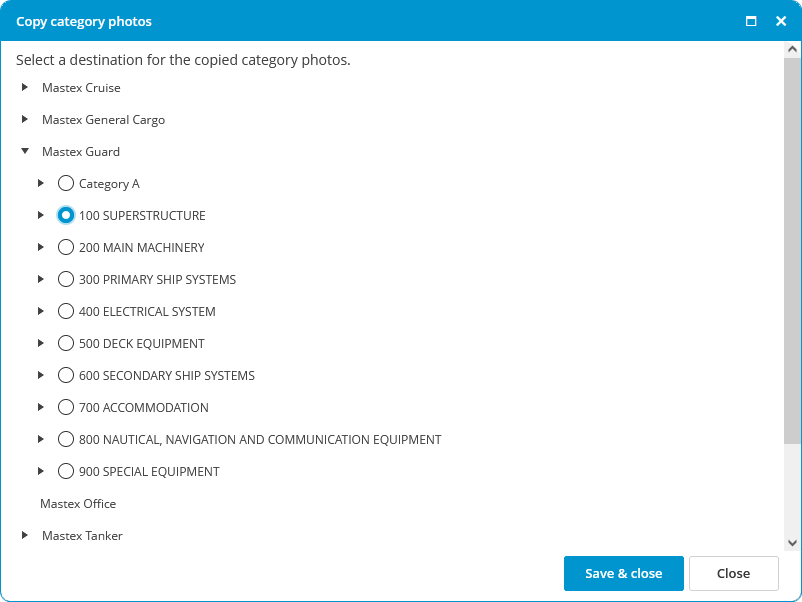
4. Click **Save &amp; Close**.

# How do I change the order of a category, group or task?

The same process is used to change the order of a category, group or task in MXSuite.

1. Right-click on a category, group or task and select **Reorder...**
2. Select a line and use **Move up** and **Move down** to change the order.
3. Click on **Save &amp; close.**

# How do I add a detail to a category?

1. Select the desired category in the tree structure.
2. Select **Details.  
    [![equipment.png](https://docs.mxsuite.nl/uploads/images/gallery/2024-11/scaled-1680-/equipment.png)](https://docs.mxsuite.nl/uploads/images/gallery/2024-11/equipment.png)**
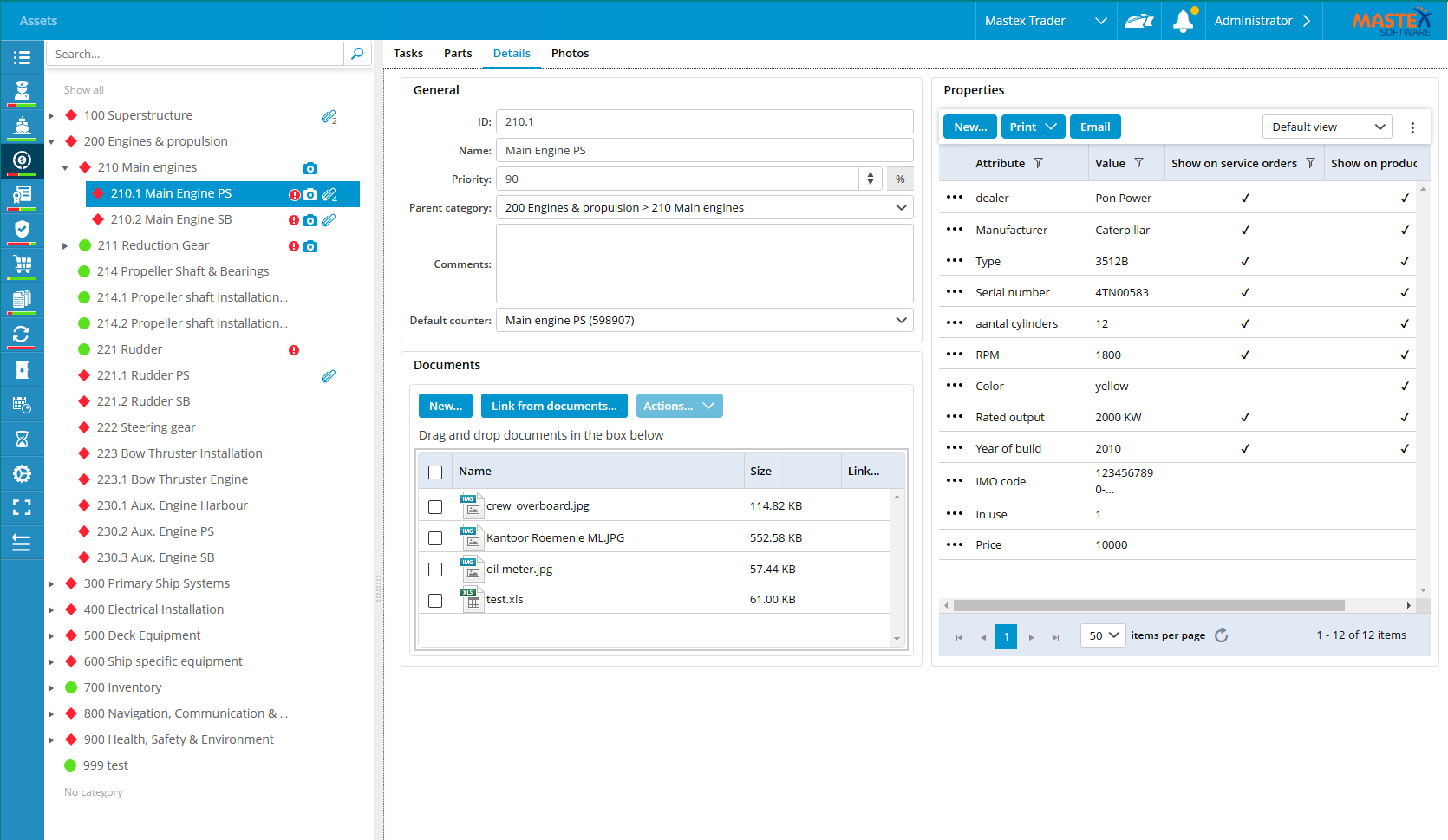
3. Within the properties area, click **New...**
4. Complete all required fields.  
    [![assetscategorynewproperty.png](https://docs.mxsuite.nl/uploads/images/gallery/2024-11/scaled-1680-/assetscategorynewproperty.png)](https://docs.mxsuite.nl/uploads/images/gallery/2024-11/assetscategorynewproperty.png)
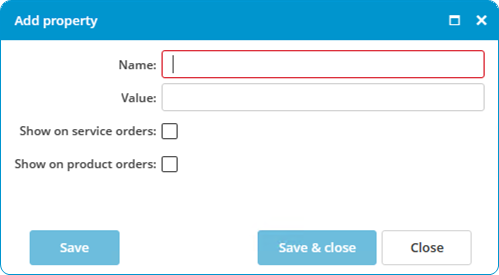
5. Click on **Save &amp; close.**

<p class="callout info">**Show on service orders**: Select this option to send the detail along with a service order.  
**Show on product orders**: Select this option to send the detail along with a product order.</p>

# How do I reorder the details?

1. Right-click on a detail and select **Reorder attributes...**
2. Select a detail and use **Move up** and **Move down** to change the order.  
    [![assetsdetailsreorder.png](https://docs.mxsuite.nl/uploads/images/gallery/2024-11/scaled-1680-/assetsdetailsreorder.png)](https://docs.mxsuite.nl/uploads/images/gallery/2024-11/assetsdetailsreorder.png)
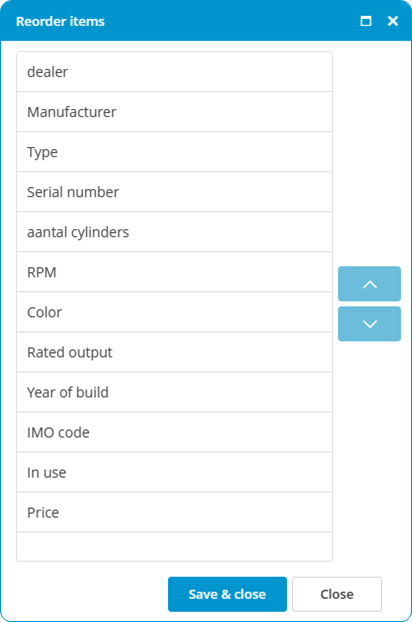
3. Click on **Save &amp; close.**