Data import via Excel
General info
Import Field relations with general data
If you filled in the following columns in the Excel file:
- Cost Code
- Currencies
- Product categories
- Units
Then this data must exist in the Administration module.
All fields in the Excel file must be in text format.
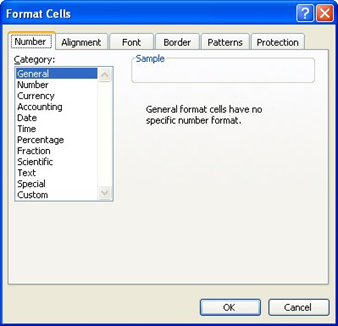
For example, if there is a problem after importing inventory with the PartNumber (column C) change the format of this column (Right mouse click on this column, select Format Cells) to the category General.
Do not change the top row of the Excel file! If this is changed, the import will fail!
Asset categories
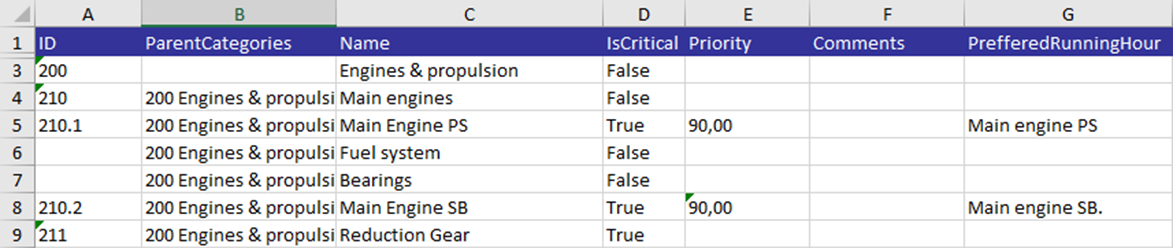
The categories will link all tasks and spare parts to a category. The sheet in the Excel file is called “CategoryList”.
To fill out the Excel file properly, ensure that all fields are filled out properly. Below are the fields listed.
|
Field |
MAX Characters |
Required |
Comment |
|
ID |
128 |
|
Id number of the category |
|
ParentCategories |
|
|
If this category is a child of another category, enter the ID number of the parent category, followed by a space, followed by the name of the parent category |
|
Name |
128 |
X |
Name of the category |
|
IsCritical |
|
X |
True or False |
|
Priority |
18,2 |
|
Number with 2 decimals, separated by a comma |
|
Comments |
1024 |
|
Comment for the category |
|
PreferredRunningHour |
|
|
Preferred counter for counter-related tasks. The name of the counter should be mentioned |
Example
Asset tasks groups
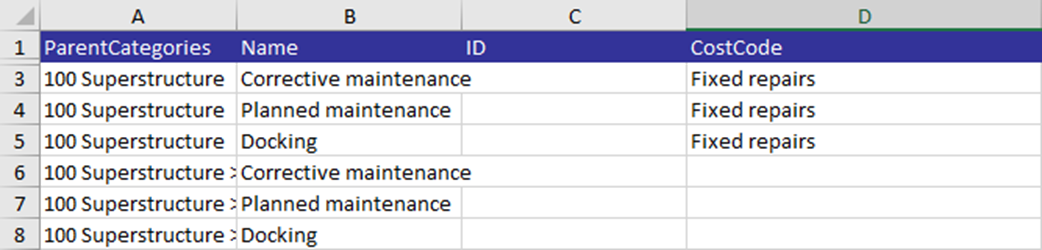
All tasks are linked to a maintenance job plan. The job plan is linked to a category. So the maintenance job plans are between the categories and maintenance tasks.
The sheet in the Excel file is called MaintenanceJobPlanList.
To fill the Excel file correctly, take care that all fields are properly filled. Below are the fields listed.
|
Field |
MAX Characters |
Required |
Comment |
|
ParentCategories |
|
X |
If this category is a child of another category, enter the ID number of the parent category, followed by a space, followed by the name of the parent category |
|
Name |
128 |
X |
Name of the Job Plan |
|
ID |
128 |
|
ID number of the job plan |
|
CostCode |
|
|
Lookup to the Cost Codes as defined in the tab Administration. This should exactly match the name of the cost code. |
Example